
If you have already set up a Shipping Zen shipping method for a shipping zone, you can reuse it for another shipping zone, or another WooCommerce site.
Export method settings
Go to the WooCommerce menu, Settings submenu, Shipping tab.
The list of your shipping zones is displayed. Click on the Modify link at the end of the line for the shipping zone containing the Shipping Zen method you want to export.
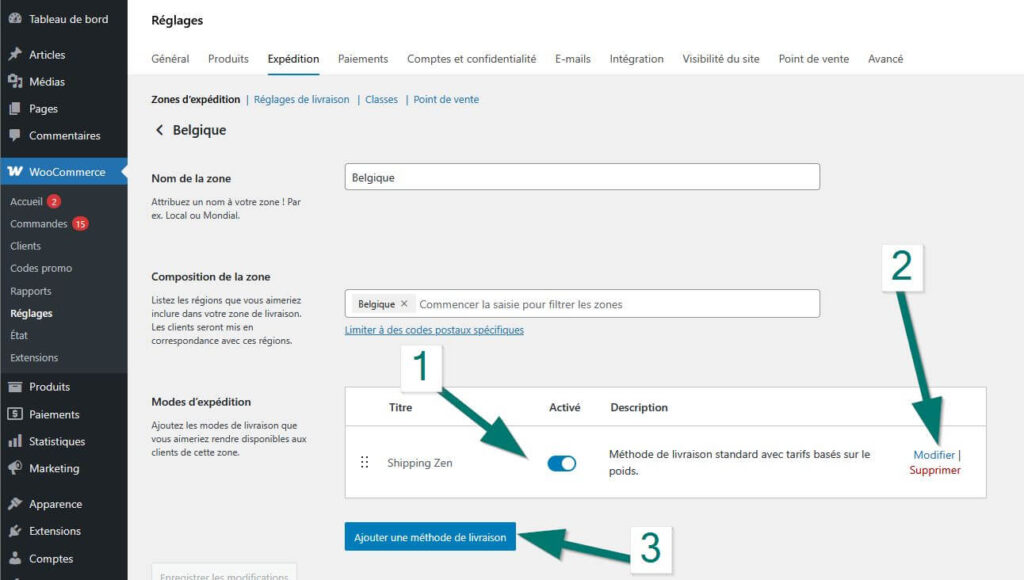
In the table of available shipping methods for the shipping zone, click on the modify link [2] at the end of the line for the method you wish to export:
In the first part of the screen, click on the Export settings in .json format button:
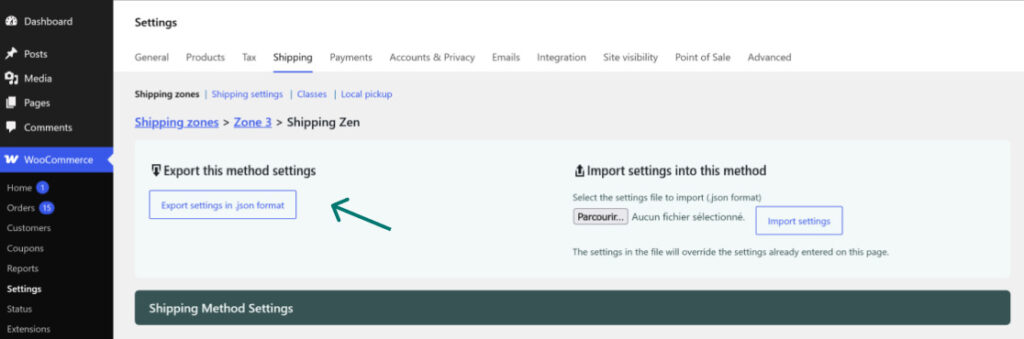
Save the .json file on your computer.
Importing parameters into a method
Go to the WooCommerce menu, Settings submenu, Shipping tab.
The list of your shipping zones is displayed. Click on the Modify link at the end of the line for the shipping zone for which you want to set up a Shipping Zen method.
If you have not yet added a Shipping Zen method for this zone, see first: how to add a Shipping Zen shipping method
In the table of available shipping methods for the shipping zone, click on the modify link [2] at the end of the line for the method you want to set up:
In the first part of the screen, on the right, click on the Browse button:
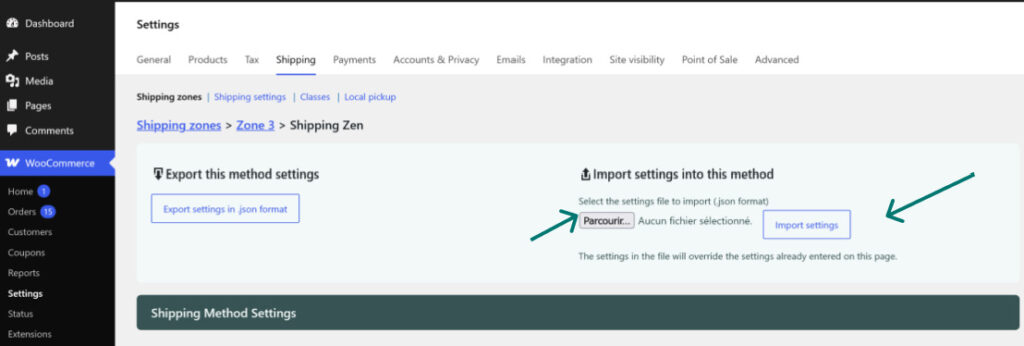
Select the previously exported .json file on your computer, then click on the Import settings button.
The settings page is then populated with the settings saved in the .json file. Make any adjustments and click on the blue Save changes button at the bottom of the screen.