
Go to the WooCommerce menu, Settings submenu, Shipping tab.
The list of your shipping zones is displayed. Click on the Modify link at the end of the line for the shipping zone for which you want to set up a Shipping Zen method.
If you have not yet added a Shipping Zen method for this zone, see first: how to add a Shipping Zen shipping method
💡If you’ve already set up a Shipping Zen shipping method for one shipping zone, you can reuse it for another zone using our export and import functionality [Pro version only].
In the table of available shipping methods for the shipping zone, click on the modify link [2] at the end of the line for the method you want to set up:
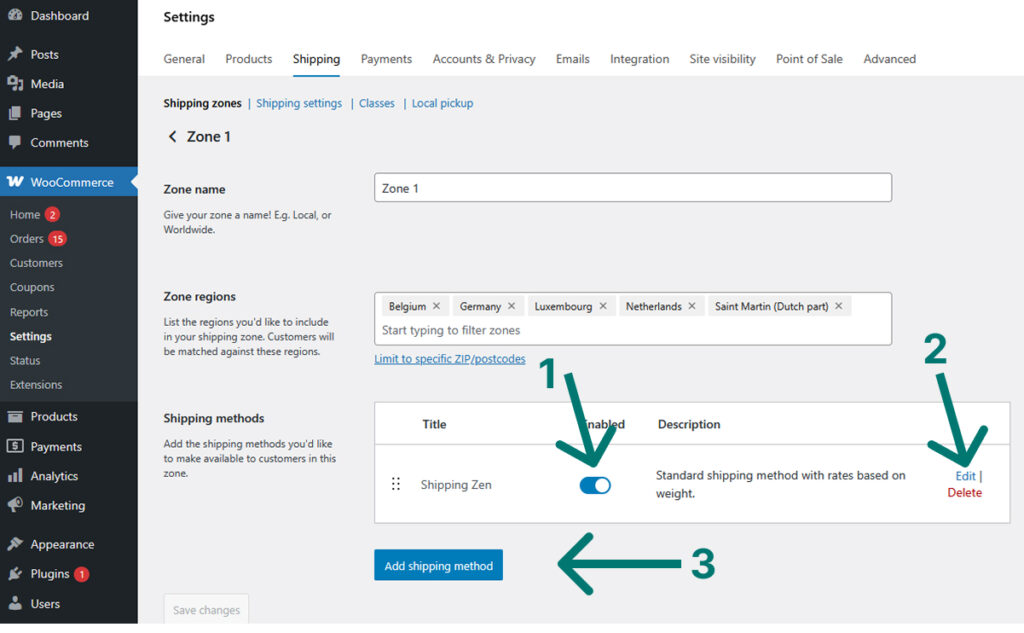
General settings of the method
In the first part of the screen, you can enter the title of the method [1] and associate a logo with it [2] :
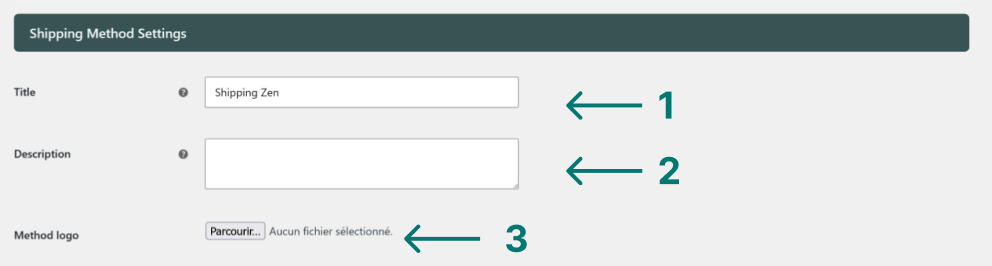
This information will be visible to users when they choose a shipping method on the cart or order confirmation page. It is advisable to choose an explicit title for the method, for example “Home delivery by Inpost”.
1. Exclusion criteria
This area of the screen is used to enter exclusion criteria.
All these settings are optional.
If one of the criteria is checked, the shipping method will not be displayed to the user.
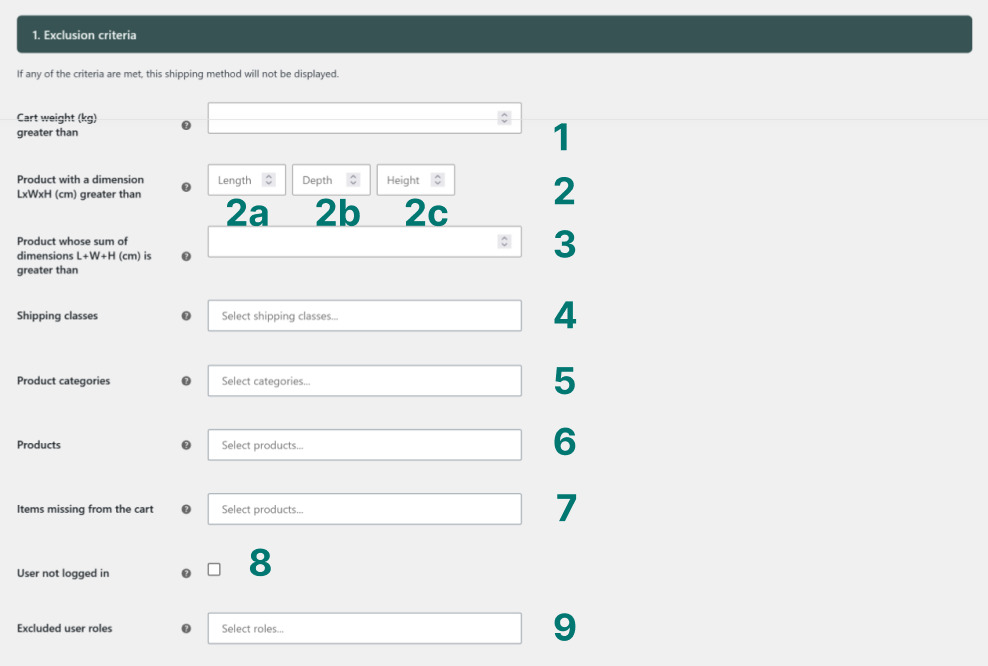
- If the cart is heavier than the weight indicated in this field, the method is not displayed. [Pro version]
❗Weights not entered are evaluated at 0. - If the cart contains at least one product for which at least one of the dimensions is greater than one of the three criteria indicated here, the method will not be displayed. To use this exclusion criterion, be sure to enter all product dimensions (Length, Depth=Width and Height) in your WooCommerce product pages. [Pro version]
❗Dimensions not entered are evaluated at 0. - If the cart contains at least one product whose sum of the three dimensions (Length+Depth+Height) is greater than the criterion indicated here, the method will not be displayed. To use this exclusion criterion, be sure to enter all product dimensions (Length, Depth=Width and Height) in your WooCommerce product pages. [Pro version]
❗Dimensions not entered are evaluated at 0. - If the cart contains at least one product that is in one of the shipping classes selected here, the method is not displayed.
- If the cart contains at least one product in one of the product categories selected here, the method is not displayed. [Pro version]
- If the cart contains at least one of the products selected here, the method is not displayed. [Pro version]
- If the cart does not contain all the products selected here, the method is not displayed. [Pro version]
- If this box is ticked, users who are not logged in will never see this method. [Pro version]
- If the user is logged in with one of the roles selected here, the method is not displayed.
2. Display criteria
This area of the screen is used to enter criteria to trigger the display of the method.
All these settings are optional.
All the criteria entered must be verified for the shipping method to be displayed to the user.
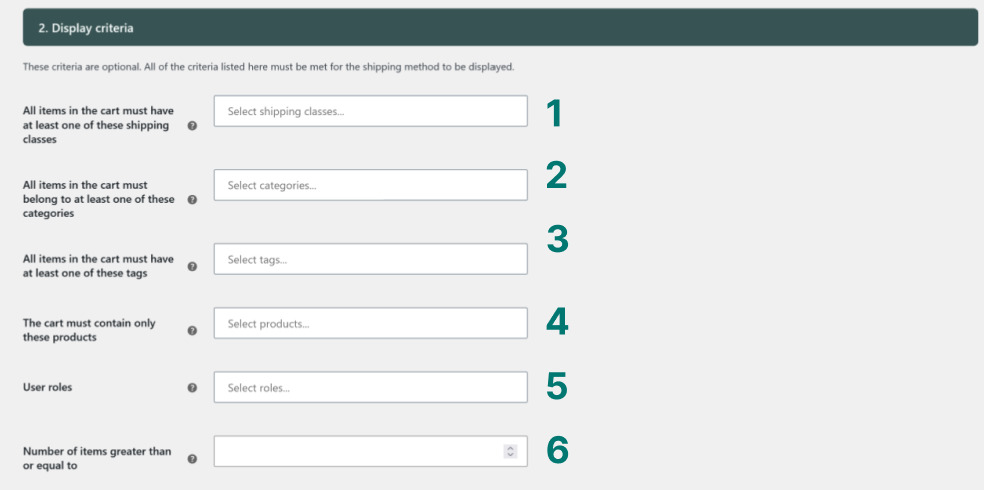
- The method is only displayed if all the products in the cart are in at least one of the shipping classes selected here.
- The method is only displayed if all the products in the cart are in at least one of the product categories selected here. [Pro version]
- The method is only displayed if all the products in the cart have at least one of the product labels selected here. [Pro version]
- The method is only displayed if all the products in the cart are among those selected here. [Pro version]
- The method is only displayed if the user is logged in with one of the roles selected here.
- The method is only displayed if the cart contains a number of items greater than or equal to the quantity indicated here. [Pro version]
For example, if the criterion specified here is 10 and the cart contains the same product 10 times, the method may be displayed (if the other criteria are met).
3. Criteria for free shipping
This area of the screen allows you to enter criteria to prevent or trigger free shipping.
All these settings are optional.
The criteria are tested in order.
Testing stops as soon as a criterion has been checked.
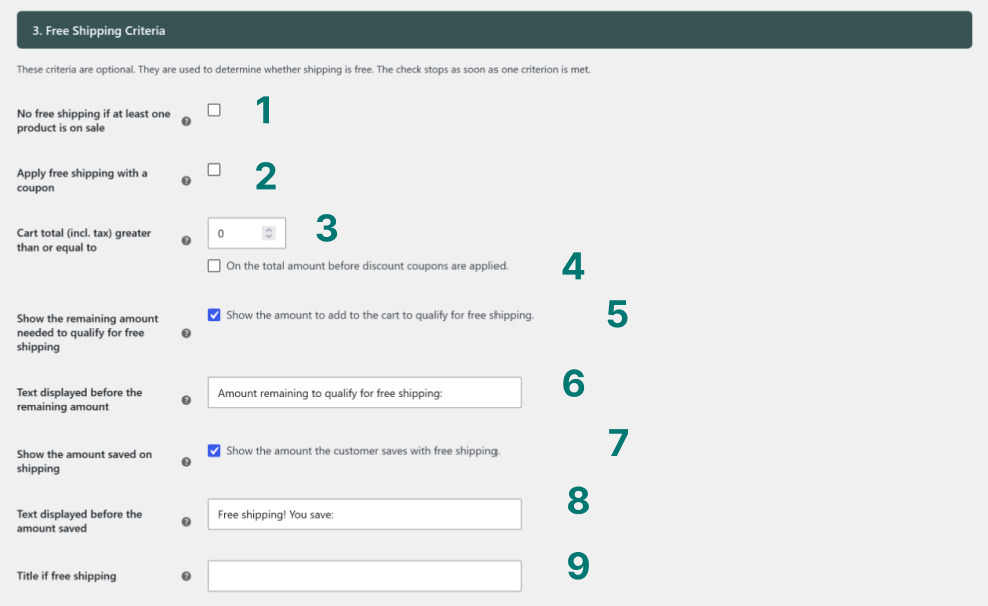
- If this box is ticked and the cart contains at least one promotional product, shipping will not be offered (even if one of the following criteria is met).
- If this box is ticked and the user applies a WooCommerce coupon offering shipping, then shipping is free.
- If the amount in the cart is equal to or greater than the amount indicated here, then shipping is free.
- If this box is ticked, all that is required to offer shipping is for the amount in the cart before discount coupons are applied to be greater than the amount indicated in [3].
- If this box is ticked and an amount is entered in [3], the user will see a sentence on the order confirmation page telling them how much they need to pay before obtaining free shipping. [Pro version]
For example “🚚 Amount remaining to obtain free shipping: €43.60”. - Text displayed before the remaining amount required for free shipping(visible if box [5] is ticked and an amount is entered in [3]).
- If this box is ticked, an amount is entered in [3], and the cart total is sufficient to trigger free shipping, the user will see a message indicating the amount saved. [Pro version]
For example: “Free shipping! You save: €6.50” - Text displayed before the amount saved (visible if box [7] is ticked, an amount is entered in [3] and the cart total is high enough to trigger free shipping).
- Free shipping title: if entered, this title replaces the method title when shipping is free.
4. Calculating the shipping rate
This area of the screen is used to calculate the shipping rate.
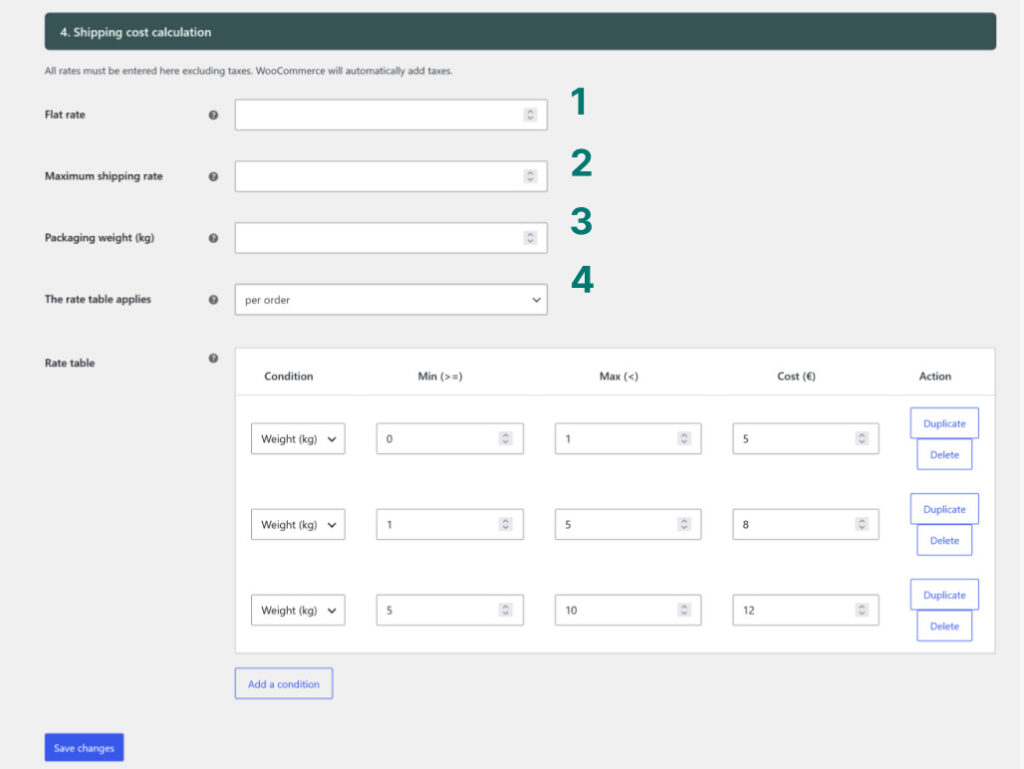
- If you enter an amount here, this shipping rate will be applied regardless of the contents of the cart, in addition to the shipping rate calculated in the table of rates.
- Enter an amount here to cap the shipping rate.
- Enter a weight here (in the same weight unit as your products) to be added to the weight of the products in the cart. The shipping rate will be calculated on the sum of the weight of the products + the weight of the packaging. [Pro version]
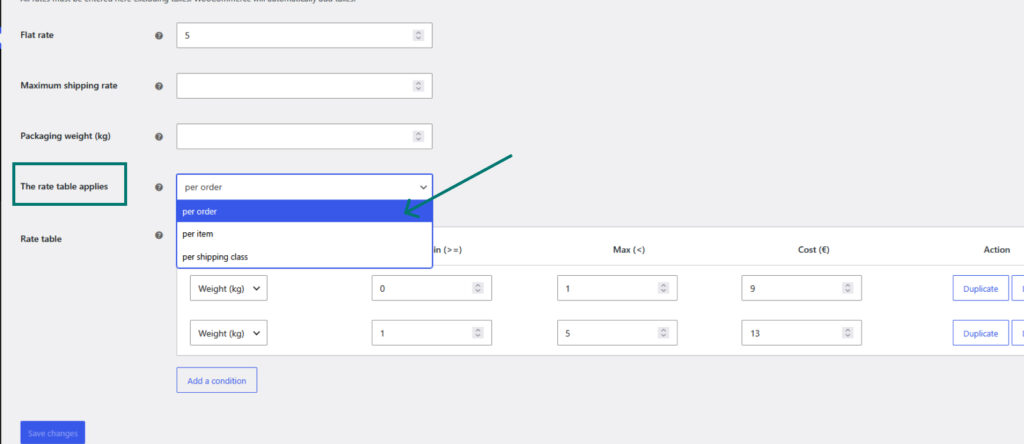
- Choose here whether the table of rates applies
- per order
- per product [Pro version]
- per order line (all products of the same reference) [Pro version] [Pro version
- per shipping class [Pro version]
Fill in the table of rates
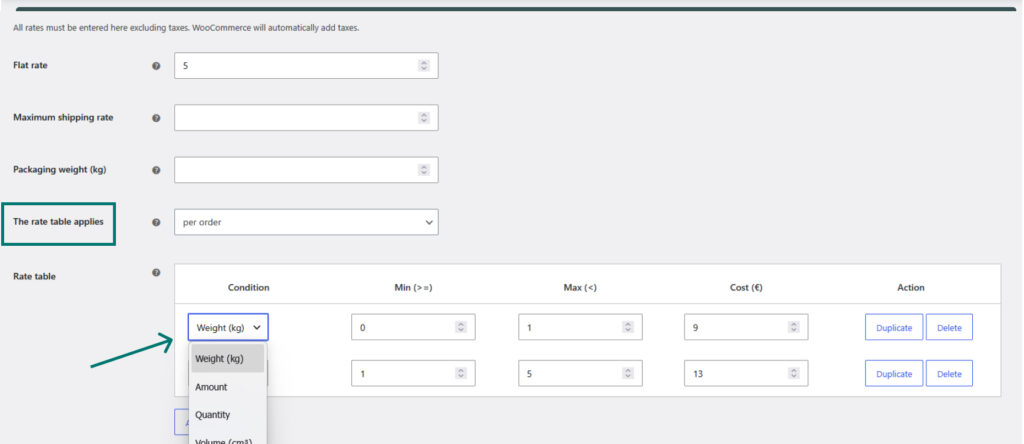
Each line of the table of rates allows you to define a condition using the first three columns. If the condition of the line is met, then the cost indicated in the 4th column is added to the shipping rate.
In the example above, the table is pre-populated with a classic pricing system based on the weight of the cart, where each line corresponds to an increasing weight bracket, with the corresponding cost:
- if the cart weighs strictly less than 1kg, the shipping rate is €9 (only the condition in the 1st line is verified)
- if the cart weighs 1kg or more but strictly less than 5kg, the shipping rate is €13 (only the condition in line 2 is met)
- if the cart weighs 5kg or more, no condition is checked and the method is not displayed.
You can duplicate or delete conditions using the buttons at the end of the line.
💾 When you have finished setting the parameters, click on the blue Save changes button at the very bottom of the screen.
The table of rates can also be used to set up more complex cases by combining conditions linked to weight, cart value, number of products or product volume. [Pro version]
📦The volume of the cart is calculated as the sum of the volumes of each product.
❗If the dimensions of a product are not entered, the volume is evaluated as 0.
See examples of settings :
- How to display a shipping method based on user role?
- How do I set fixed-price shipping in WooCommerce?
- How can I offer free shipping for purchases over a certain amount in WooCommerce?
- How to include the weight of packaging in WooCommerce shipping rates?
- How to add insurance rates to WooCommerce shipping rates
- How do I setup shipping rates for an order split in several parcels sent separately?